Using An iPhone As A Digital Recorder With Dragon
To use Dragon for speech recognition and transcription, you don’t need a dedicated digital recorder if you already have an iPhone. It can serve solely as a convenient and reliable recording device for dictating reports, notes, and other content. If you record audio using the iPhone’s Voice Memos app and import it directly into Dragon, it will be easier to convert speech into text with high accuracy.
Using an iPhone as a Digital Recorder with Dragon
provides portability, flexibility, and high-quality audio without additional hardware. In this guide, you will learn how to record audio on your iPhone, import recordings into Dragon, transfer files to your computer, and optimize your recordings for the best transcription accuracy.
What Are The Benefits Of Using An iPhone As A Digital Recorder With Dragon
Here are some of the advantages of using an iPhone as a Digital Recorder with Dragon are mentioned below. Have a look at them one by one;-
- You will find your iPhone within reach, making it easy to record notes, ideas, interviews, meetings, and reports from anywhere, at any time.
- You don’t have to purchase any dedicated digital recorder. You can simply use your iPhone’s built-in recording capabilities to save time and money.
- The voice memos app on iPhone helps capture clear audio, which in turn helps Dragon achieve better transcription accuracy.
- You can easily transfer the recordings to your computer using AirDrop, iCloud, or a USB connection for transcription in Dragon.
- It is easy to use for recording thoughts and information while traveling, commuting, or when you are far from your desk, and then transcribe them later with Dragon.
- Whether you are dictating, recording interviews, documenting, or simply capturing meeting notes, an iPhone provides a simple and reliable recording solution.
- You can easily name, organize, and store your voice recording on your iPhone. This will make it easy to locate and manage them before importing them into Dragon.
What Are The Requirements For Using An iPhone As A Digital Recorder With Dragon?
Here are some of the requirements that you must have in order to use an iPhone as a digital recorder with a dragon. Go through all of them at once.
- iPhone
- “Dragon Recorder” application from Nuance should be downloaded to your iPhone
- Dragon 10 or 11 should be there on your pc
How To Set Up A Profile For Digital Recording?
To set up a profile for digital recording, follow the below given steps.
- Even if it is easy to transcribe a recording via an iPhone or any other digital recorder from any Dragon user profile, you will get better results if you create a new “source” on your current user profile. With the following steps, you will know how to do this.
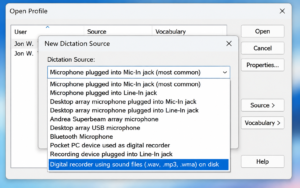
- Go to dragon > open profile > source> new.
- From the pull-down on the “new dictation source” window, choose a digital recorder by using files.
This way:
- Now click on ok.
- Now read into your portable device for around 15 minutes by following the provided instructions. Right after that, let the dragon process the recording so it can adapt to your voice and your device’s sound quality.
Procedure For Creating A Digital Recording With Your iPhone
- Assume you have already downloaded the Dragon Recorder app from the App Store. Now launch it simply and create a new recording.
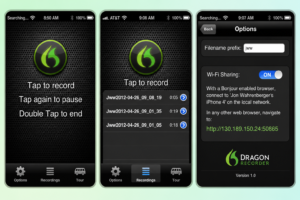
- Here are some of the notes that you can follow to control the recording:-
- First, tap the central button to begin a recording.
- Tap it once more, consequently, in order to pause and resume recording.
- Now double-tap the button to complete a recording.
- Once you are done with the recording, you can add to it by selecting it, dragging the slider bar to the far right, and again touching the record button.
How To Transfer Your Recording To Your Computer?
There are various ways through which you can transfer your file to your computer:
- Wirelessly via Wi-Fi
- By sync cable with iTunes
- Emailing the file (programs other than Dragon Recorder)
Wireless Transfer
You have to open the Dragon Recorder application and click on the “options” button on the bottom left. Now turn on “Wi-Fi Sharing,” and you will get an assigned URL.
- First, launch a browser on your computer (ensure your computer and iPhone are working on the same wireless network) and enter the URL that is shown on your iPhone. This will open a page, as shown below, that lists all the recordings on your iPhone.
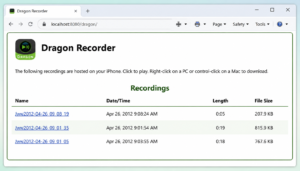
- Right-click on the recording that you want to transfer and then select “save target as”. Now save the file to a place on your hard drive that you can easily remember. Later, you will point Dragon to this file to transcribe the recording.
Wired Transfer Using iTunes
(Kindly note: You are also allowed to set up wireless transfer with iTunes)
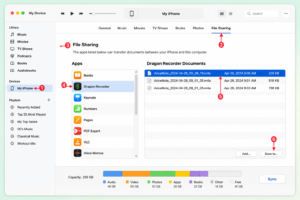
- First, connect your iPhone to your computer via a sync cable.
- If it is unable to open automatically, open iTunes.
- Within iTunes, adhere to the steps shown within the diagram given below in order to identify and save your files or files to any of the memorable locations on your local drive.
To Transcribe A Digital Recording
Once you are done with creating a digital recording and saving it to your hard drive with the help of either of the methods shown above, follow the simple steps given below in order to transcribe your recording:-
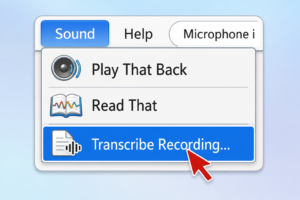
- Open Dragon (if you have already created a separate source for digital recordings, then you should open this; it’s not just open your basic user profile)
- Select “transcribe recording” from the “sound” menu.
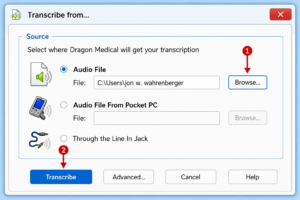
- If you have opened the dialog box, first click on the browse button and navigate to the file that you have saved from your iPhone, then click on the “transcribe” button. If you are unable to see the file, ensure that “WAV file” is selected as the file type (for digital recordings other than the iPhone, you are required to choose MP3 or WMA as the file type).
Kindly note: By default, Dragon will transcribe your recording into “dragonpad”. A simple word-processing window from which you can easily copy your text and paste it into the electronic health record or other text window. If you prefer to transfer text directly into a specific window, you must open the advanced tab shown in the dialog box above.
You will notice the following options window, which allows you to change this behavior and determine whether you want Dragon to process voice commands as it transcribes your recording. You can also go through the menu on this screen for further information.
Mistakes To Avoid While Recording
Here are some of the mistakes you should avoid in order to have a clear and precise recording:-
- Recording in a noisy environment.
- Speaking very fast.
- Keeping the iPhone too far.
- Taking the help of a different recording device with the same Dragon profile.
- Not checking the recording before transcription.
Conclusion!
If you are using an iPhone as a Digital Recorder with Dragon there are a lot of things to keep in mind to expect the best output. Whether it’s the place, procedure or way of recording, everything matters when it comes to recording. If you are facing any issue while recording or new to it, you can take help of this guide to expect a better outcome without putting extra efforts. This way , you can have a quality recording that will eventually support your other kind of tasks.
FAQs
Q1. Does Dragon support iPhone recordings?
A. Yes, Dragon can easily transcribe recordings made via iPhone, as long as the audio file is in a supported format and the recording is clear.
Q2. Why is Dragon unable to recognize my recording ?
A. This can happen if the audio file is in an unsupported format, the recording quality is not good, or the file is not transferred correctly to your computer.
Q3. Is an iPhone a good alternative to a dedicated digital recorder?
A. Yes, an iPhone is a convenient and cost-effective option you can easily find.