
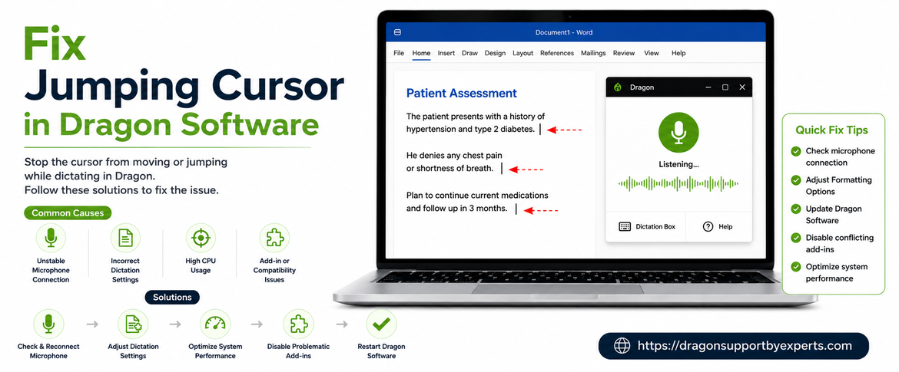
If you’re searching for how to fix jumping cursor, especially in Dragon software, you’re not alone. The Dragon software cursor jumping issue is commonly caused by microphone background noise, conflicting software, or outdated drivers. This problem can interrupt dictation and reduce productivity. Fortunately, understanding how to fix jumping cursor in Dragon can help you resolve the issue quickly and get back to smooth workflow.
How to Fix Jumping Cursor – Common Causes
Before applying solutions, it’s important to understand the causes behind how to fix jumping cursor issues in Dragon software:
- Background noise interference
- Low-quality or unfiltered microphone input
- Conflicts with third-party software
- Outdated or corrupted mouse drivers
- Incorrect Windows mouse settings
Identifying the cause helps in applying the right fix quickly.
Immediate Fixes for Dragon Software Cursor Jumping
Turn Off Microphone During Manual Edits
When you manually edit text using your mouse or keyboard, keep the microphone off. Dragon may interpret background sounds or clicks as commands, causing the cursor to jump unexpectedly.
Use a Noise-Canceling Microphone
A poor-quality microphone can lead to frequent Dragon software cursor jumping. Always use a high-quality headset with noise cancellation to improve accuracy.
Disable “Hide Pointer While Typing”
Follow these steps:
- Open Control Panel
- Go to Mouse Settings
- Click on Pointer Options
- Uncheck “Hide pointer while typing”
This ensures better cursor visibility and stability.
Fix Software Conflicts
Conflicting applications can interfere with cursor behavior:
- Close screen-sharing tools
- Disable remote desktop software
- Avoid running multiple voice/input tools simultaneously
Resolving these conflicts can reduce Dragon software cursor jumping significantly.
Update or Reinstall Mouse Drivers
Driver issues often cause cursor instability.
Steps:
- Open Device Manager
- Expand “Mice and other pointing devices”
- Right-click your mouse
- Click “Update driver”
If needed, uninstall and restart your system to reinstall drivers automatically.
Application-Specific Tips
Microsoft Word Users
- Use “Draft View” for long documents
- Avoid heavy formatting while dictating
- Ensure your system is running smoothly
Lag or heavy documents can trigger cursor jumping.
Dragon for Mac / Older Versions
- Update your operating system
- Install the latest Dragon version
- Older versions may not work properly with new systems
Check Formatting Settings
Conflicts in formatting rules can affect cursor placement:
- Review auto-formatting options
- Match spacing rules between Dragon and your editor
Use Sleep Mode for Better Control
When not dictating, use the “go to sleep” command. This prevents Dragon from picking up unintended sounds and helps avoid Dragon software cursor jumping.
Conclusion
In conclusion, if you’re struggling with how to fix jumping cursor, especially in Dragon software, the solution lies in proper setup and maintenance. From using a quality microphone to updating drivers and disabling conflicting settings, these steps will help eliminate the Dragon software cursor jumping issue. By following this guide on how to fix jumping cursor, you can ensure a smoother and more accurate dictation experience.
Need help with Dragon software? Contact our experts for instant support.
Related Post:
How to Fix Upgrade User Profile Issues
Installation guide of Dragon Software
A. It usually happens due to background noise, microphone issues, or software conflicts.
A. Turn off the microphone during edits, update drivers, and use a noise-canceling microphone.
A. Yes, poor microphone quality is one of the main causes of cursor jumping.
A. Yes, updating or reinstalling mouse drivers often resolves cursor instability.