
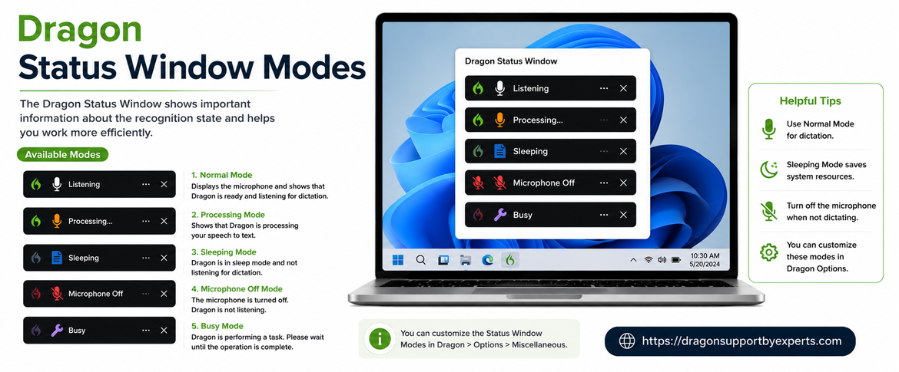
If you’re using Dragon speech recognition software, understanding core features like the Dragon Status Window Modes, Recognition Modes, and Microphone Modes is essential for smooth and accurate performance.
These features allow you to control how Dragon listens, processes, and responds to your voice. When used correctly, they help reduce errors, improve accuracy, and make your workflow more efficient.
What is the Dragon Status Window Modes?
The Dragon Status Window is a floating panel that stays visible across applications, giving you quick access to important tools and settings.
It helps you monitor and control key functions such as:
- Microphone status
- Current recognition mode
- Quick access to commands and settings
This ensures you always know whether Dragon is actively listening or not.
How to Show or Hide the Status Window
Using Voice Commands
- Say “Show Status Window” to display it
- Say “Hide Status Window” to remove it
Using Menu Options
- Click the Dragon icon in the menu bar
- Select Show Status Window or Hide Status Window
Show Status Window at Startup
To automatically display the Status Window when Dragon starts:
- Click the Dragon icon
- Go to Preferences
- Open the General section
- Enable or disable Show Status Window at Startup
This allows you to customize your workspace based on your preference.
Understanding Dragon Microphone Modes
The microphone button in the Status Window shows whether Dragon is listening to your voice. Each mode controls how the software responds to speech.
Microphone Modes Table
| Indicator | Mode | What It Means |
|---|---|---|
| 🟢 Green | On | Dragon is actively listening and responding to your voice |
| 🔴 Red | Off | Dragon is not listening |
| 🔵 Blue | Sleep Mode | Dragon only responds to “Wake up” command |
How to Use the Microphone Button
- Click the microphone icon to toggle between On and Off
- Use Sleep Mode to pause recognition without turning it off completely
- Say “Wake up” to activate Dragon from Sleep Mode
Using the correct microphone mode helps prevent unwanted commands and improves accuracy.
What is the Recognition Mode Button?
The Recognition Mode button controls what type of speech Dragon processes. Each mode is designed for a specific task.
Dragon Recognition Modes Explained
Recognition Modes Table
| Indicator | Mode | What You Can Do |
|---|---|---|
| 💬 | Dictation Mode | Dictate text, punctuation, and basic commands |
| ⚙️ | Command Mode | Execute voice commands only |
| 🔤 | Spelling Mode | Enter letters, numbers, and punctuation manually |
| 🔢 | Numbers Mode | Dictate numbers and mathematical symbols |
How to Switch Recognition Modes
You can switch between modes using:
- Voice commands like “Switch to Dictation Mode”
- Clicking the Recognition Mode button
- Keyboard shortcut (default: ⌘F10)
Selecting the correct mode improves recognition accuracy and efficiency.
Using Commands in Dictation Mode
In Dictation Mode, Dragon allows both text input and command execution. It uses pauses to understand your intent.
How It Works
- Continuous speech → Treated as text
- Pauses → Treated as commands
Example
- Say: Select date and time → Typed as text
- Say: What is today’s date (pause) Select date → Executes command
Speaking clearly and using pauses properly improves performance.
Window Menu Button in Dragon
The Window Menu provides access to additional tools that enhance your workflow.
Options Available
1. Commands Window
- View and edit voice commands
- Customize commands for faster work
2. Correction Window
- Review dictated text
- Fix errors and train Dragon
3. Guidance Window
- Get suggestions based on usage
- View system status and helpful commands
Why These Features Matter
Using Dragon Status Window, recognition modes, and microphone modes correctly helps:
- Improve speech recognition accuracy
- Reduce unintended commands
- Speed up dictation and navigation
- Enhance overall productivity
Conclusion
The Dragon Status Window, Recognition Modes, and Microphone Modes give you full control over how Dragon interacts with your voice.
By understanding and using these features effectively, you can work smarter, reduce errors, and get faster, more accurate results. Switching between the right modes at the right time unlocks the full potential of Dragon speech recognition software.