Dragon NaturallySpeaking is a prime, one-of-a-kind speech recognition software for enhancing user productivity by using voice commands. However, they have been having some issues regarding the upgrade of their profiles. Consequently, these issues ought to be resolved for a smooth user experience while “Upgrading the User Profile.” Therefore, this article proposes an effective solution for these issues.
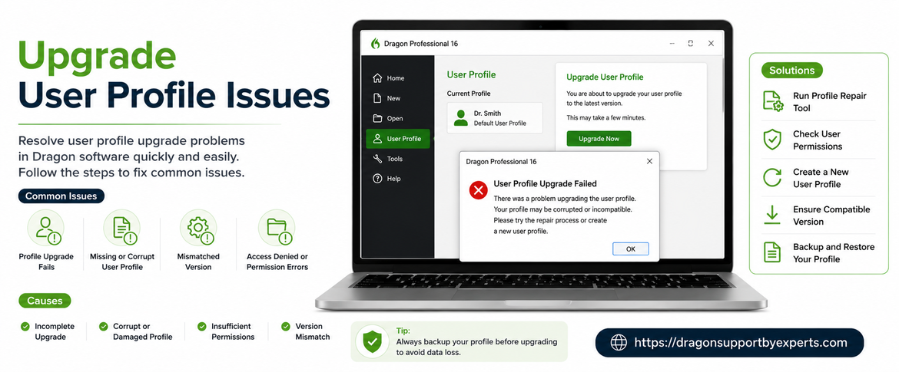
Common Upgrade User Profile Issues
After upgrading Dragon, you may encounter the following problems:
- Profile upgrade failed
- Unable to find upgraded transcription profiles
- Custom vocabulary missing after upgrade
These issues often occur due to profile corruption or compatibility differences between versions.
Understanding Upgrading the User Profile Issues
During Nuance Dragon user profile upgrades, a lot of problems may be experienced; for example, software crashes, incomplete upgrades, and corrupted profiles. Moreover, such problems can have their roots in using outdated software, systems that are incompatible, or insufficient resources.
How to Fix Profile Upgrade Failed Error
Dragon tries to upgrade existing profiles automatically. However, in rare cases, profiles may contain damage that cannot be repaired.
Quick Solution (No Custom Vocabulary)
If you don’t have any custom vocabulary saved:
- Create a new profile
- Delete the old damaged profile
This is the fastest and simplest fix.
Fix Profile Upgrade While Keeping Custom Vocabulary
If you need to preserve your custom vocabulary, follow the methods below:
Option 1: Restore Backup Profile and Upgrade Again
Before upgrading, Dragon automatically saves a backup of your profile.
Steps to restore and upgrade:
- Quit Dragon completely
- Navigate to: /Documents/Dragon/
- Locate upgraded profiles and move them to Trash
(Do NOT empty the Trash) - Go to: /Documents/Dragon/Support/
- Find and unzip the backup profile file
- Relaunch Dragon
- Try upgrading the restored profile again
Note: You may be asked to repeat Microphone Setup for better accuracy.
Final Step
Test the upgraded profile to ensure your vocabulary works correctly.
If everything is fine, you can safely empty the Trash.
Option 2: Export and Import Custom Vocabulary
If your profile still loads, you can manually transfer your custom vocabulary.
1. Export Vocabulary
- Launch Dragon
- Load the affected profile
- Open Edit Vocabulary from the Dragon menu
- Select User from the dropdown
- Press Command + A to select all words
- Click the Gear icon → Select Export
- Save the file (.xml format)
2. Create New Profile
- Close Dragon
- Move the damaged profile to Trash (Do NOT empty)
- Relaunch Dragon
- Create a new profile
3. Import Vocabulary
- Open Edit Vocabulary
- Click the Gear icon → Select Import
- Choose the saved .xml file
- Complete the import process
Final Step
Test the new profile to confirm your vocabulary is working properly.
If successful, you can delete the old profile permanently.
Fix Missing Transcription Profiles
If your transcription profile is missing after upgrading, don’t worry—this is expected behavior in newer versions.
Why This Happens
Dragon Professional Individual for Mac 6 handles transcription differently than older versions like Dragon Dictate 4 or Dragon for Mac 5.
Where to Find Transcription Profiles
Instead of appearing in the Profiles section, transcription profiles are now located in:
- Speaker dropdown list
- Found inside the Transcription window
Pro Tips to Avoid Profile Upgrade Issues
- Always back up your Dragon profile before upgrading
- Export custom vocabulary regularly
- Avoid interrupting the upgrade process
- Keep your Dragon software updated
Conclusion
Issues with upgraded profiles in Dragon can be frustrating, but they are usually easy to fix. Whether your profile upgrade failed or your transcription profile is missing, you can resolve these problems by restoring backups or transferring your custom vocabulary.
By following the steps above, you can ensure a smooth transition and continue using Dragon without interruptions.
FAQs:
A. Common causes are the older version of software, system incompatibility, and lack of enough resources.
A. You can back up your user profile beforehand with the software’s feature.
A. Problems of permission can be overcome while upgrading by running as an administrator.