
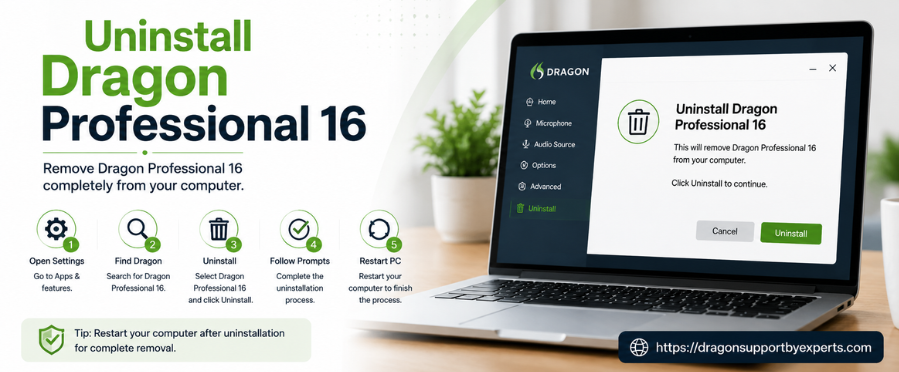
Are you looking to Uninstall Dragon Professional 16 but are unsure how to do so? Well, if this is an issue, then this guide can help you out. Yes, we have provided an elaborated version of the procedure to uninstall Dragon Professional 16 with ease, along with other important details, including why it is required, what to look for before doing so, and all. So, to better understand, keep reading.
How To Uninstall Dragon Professional 16?
There are 3 ways to uninstall Dragon Professional 16. Have a look at them one by one.
Windows Control Panel ( Highly Recommended Method)
- Click on the “Start menu” and go to the “Control Panel”.
- Click “Programs” and “Features”.
- Look for and select “Dragon Professional 16” from the list of installed programs.
- Now click on “Uninstall”.
- Confirm the action by clicking “Yes” when prompted.
Uninstall From The Product CD
- First, insert the “Dragon Professional 16 DVD” in order to launch the installer automatically.
- Click on the “Next button”.
- Select the remove option and then “click next”.
- Now click on the “Remove Button”.
- Click on the “Finish Button” in order to complete the uninstallation.
| Note: If the Dragon Professional 16 installer does not start automatically, just use Windows Explorer to browse to the DVD and double-click “setup.exe” on the product DVD. If you have installed the application from a download, navigate to the extracted files and double-click “setup.exe” to start the Dragon Professional 16 installer. |
Uninstall From The Professional 16 “Remover Tool”
- First, download the “Remover Tool”.
- Now save the “DNS16Clearner.exe” file to the Windows desktop.
- Have a backup of any user profile.
- Run the “DNS16clearner.exe.”
- Do follow the on-screen instructions.
- When the remover tool is completed, “restart the computer”.
| Note – Using this option will not deactivate Dragon Professional or activate any additional installation. |
What Is Dragon Professional 16
Dragon 16 is advanced, high-tech speech recognition software developed by Nuance. It is used by various users, including enterprises, busy professionals, students, and individuals with limited mobility. It is enriched with Dragon 16 features such as deep application compatibility, high-accuracy dictation, hands-free control and accessibility, offline functionality, and more. All this together makes it a reliable source to depend on for completing all tasks with precision and 100 percent accuracy.
Why Is It Required To Uninstall Dragon Professional 16?
There are some kinds of scenarios where you would be required to uninstall Dragon Professional 16. Have a look at them one by one.
- To Resolve A Failed Installation
If there is a failure in standard installation or program update, you may be required to do a complete uninstallation in order to clear corrupt registry files or setup blockers.
- To Perform A Clean Reinstall
Facing software glitches and basic troubleshooting fails, removal of the entire software will help you out with a fresh start.
- Changing Systems
If you are looking to move the software to a new computer, you must deactivate the license first and uninstall it in order to ensure your license key can get activated on the new machine.
- Resolve Performance Issues
With time , you might encounter various issues related to the Dragon Professional 16, such as it might get slow, freeze, or consume excessive system resources. If you do a complete uninstall and reinstall of the software , you can restore the smooth performance.
- Free Up Disk Space
Dragon Professional 16 usually stores program files, temporary data, and user profiles, which can take up storage space. With the removal of software, you can free up disk space on your computer.
- Removal Of Corrupted User Profiles
User profiles become damaged at regular intervals, which causes voice recognition errors or startup problems. If you uninstall the software and remove leftover files , you can help in creating a fresh, error-free profile with ease.
Things To Do Before Uninstalling Dragon Professional 16?
Here are some of the things that you must keep in mind before uninstalling Dragon Professional 16. Have a look at them one by one.
- Have a backup of your “User Profile”, as it contains customized voice recognition data, vocabulary, and settings. It will help in restoring your preferences later if needed.
- Export the added custom vocabulary , macros, and commands before uninstalling the software in order to avoid losing your personalized settings.
- Do keep your Dragon Professional 16 license key and activation details in a safe and secure location. It will be required when you reinstall the software later.
- If you are looking to move Dragon Professional 16 to another computer , you can easily deactivate the license before uninstalling it. It will help you to activate it in a new system.
- Exit Dragon Professional 16 and close all the related applications in order to ensure a smooth uninstallation
- Ensure you are properly logged in with an administrator account, as administrative privileges usually require the complete uninstallation of the software.
Common Issues And Solutions During Uninstallation
Here are some common issues users encounter when uninstalling Dragon Professional 16. Have a look at them one by one.
Problem – There is no activity when clicking the uninstall option.
Solution – Restart your computer and try again. Ensure you have signed in with an administrator account before doing the uninstallation.
Problem – You are unable to uninstall because Dragon services are still active.
Solution – Shut down Dragon Professional 16 and end any related processes in Task Manager before initiating the uninstall process.
Problem – Dragon Professional 16 has been completely removed, but some files, folders, or settings may remain on the computer.
Solution – To resolve this, manually delete the program files and the temporary folder immediately after the uninstall process completes.
Problem – Damaged files may prevent proper uninstallation.
Solution – Use the Windows program install and uninstall troubleshooter, or just reinstall Dragon Professional 16 and then uninstall again.
Problem – Unexpected error codes or messages pop up on the screen during the removal process.
Solution – Just note the error, restart your computer, and try uninstalling again. If it remains the same, look for support.
Conclusion!
Hope you got an idea of how to Uninstall Dragon Professional 16 using the right information and technique. This will help you in various ways, including resolving failed installations and performance issues, performing a clean reinstall, and more. If you need further assistance, you can rely on this guide to resolve your issue. If it remains the same, you can look for technical support.
Related Post: How To Upgrade To Dragon 16?
FAQs!
A. Not necessarily. Some of the user profiles, settings, and temporary files might remain on your computer. You may need to manually remove any leftovers to complete the uninstallation.
A. The Dragon Professional 16 remover tool (DNS16Cleaner.exe) is designed to help users remove Dragon Professional 16 when the standard uninstall process fails or leaves behind unwanted files.
A. Just check whether the program appears in Programs and Features and verify that no dragon-related files, folders, or processes remain on your computer.
A. Yes, but before uninstalling Dragon Professional 16, make sure to back up your user profile, custom vocabulary, and settings. This will allow you to restore them after reinstalling the software.