
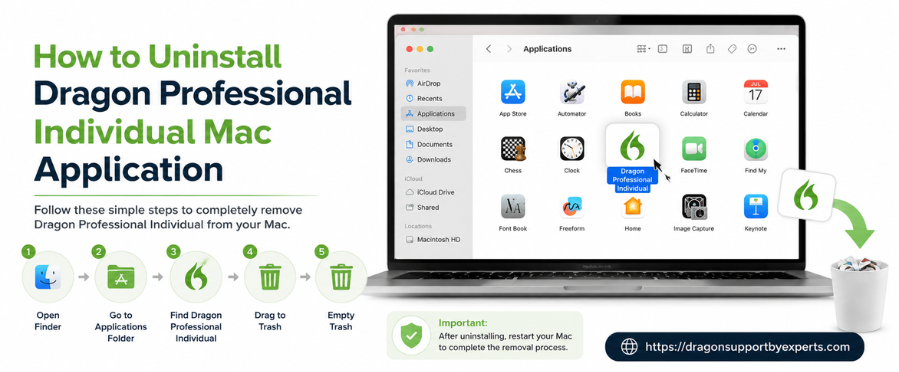
Uninstalling Dragon Professional Individual for Mac v6 is not just about deleting the application. Many hidden files, preferences, and extensions remain in your system, which can cause performance issues or errors during reinstallation. This guide will help to Uninstall Dragon Professional Individual Mac.
Why You Should uninstall Dragon Professional Individual Mac Completely
Many users only remove the application, but leftover files can still stay on the system. These files may cause conflicts, errors, or slow performance over time. A complete uninstall ensures your system stays clean and optimized.
- Prevents software conflicts
- Improves system performance
- Avoids reinstall errors
- Frees up storage space
Step 1 – Uninstall Dragon Application
The first step is removing the main Dragon application from your Mac. This is the basic uninstall process but does not remove all associated files.
Remove App from Applications Folder
Follow these steps to delete the application:
- Open Finder
- Go to Applications folder
- Locate Dragon Professional Individual
- Drag it to Trash
- Enter your Mac username and password if prompted
Step 2 – Remove Dragon Data Files
After uninstalling the app, you need to remove all supporting files stored in your system directories. These files contain important data and settings that must be deleted for a clean uninstall.
Delete Application Support Files
These files store core data used by Dragon.
- Open Finder
- Click Go > Go to Folder
- Enter:
/Library/Application Support - Find Dragon folder
- Move it to Trash
Delete User Preference Files
Preference files store your personal settings and configurations.
- Open Go to Folder again
- Enter:
~/Library/Preferences - Locate file:
com.dragon.dictate.plist - Drag it to Trash
Step 3 – Remove Dragon Anywhere Data
If you have used Dragon Anywhere, your login credentials and sync data may still be stored in your system. Removing this ensures complete data cleanup.
Delete Keychain Data
Follow these steps to remove stored credentials:
- Go to Applications > Utilities
- Open Keychain Access
- Search for Dragon Anywhere Login
- Select it and press Delete
- Confirm deletion
Step 4 – Remove Dragon Web Plug-in
Dragon installs browser plug-ins that also need to be removed manually. Leaving them installed can cause browser conflicts.
Delete Plug-in File
Here’s how to remove the plugin:
- Open Finder
- Click Go > Go to Folder
- Enter:
/Library/Internet Plug-Ins - Find
npDDRia.plugin - Move it to Trash
Step 5 – Remove Safari Extension
Browser extensions can continue running even after uninstalling the software. It’s important to remove them manually.
Uninstall Extension in Safari
Follow these steps:
- Open Safari
- Click Safari > Preferences
- Go to Extensions tab
- Select Dragon extension
- Click Uninstall
Step 6 – Remove Firefox Extension
If you use Firefox, Dragon extensions must be removed separately from the browser settings.
H3: Remove Extension in Firefox
Here’s how to do it:
- Open Firefox
- Go to Tools > Add-ons
- Click Extensions
- Find Dragon Internet Extension
- Click Remove
Final Step – Clean Up Your System
After completing all the steps, it’s important to finalize the uninstall process properly. This ensures no leftover files remain in your system.
- Empty Trash
- Restart your Mac
Pro Tips for Better Performance
To keep your Mac running smoothly after uninstalling Dragon, follow these additional tips.
- Always remove both system and user files
- Restart your Mac after uninstall
- Remove browser extensions to avoid conflicts
- Perform a clean uninstall before reinstalling
Conclusion
Uninstalling Dragon Professional Individual for Mac version 6 requires multiple steps to ensure complete removal. By following this structured guide, you can safely remove all files, extensions, and data associated with Dragon, improving your system performance and preventing future issues.