
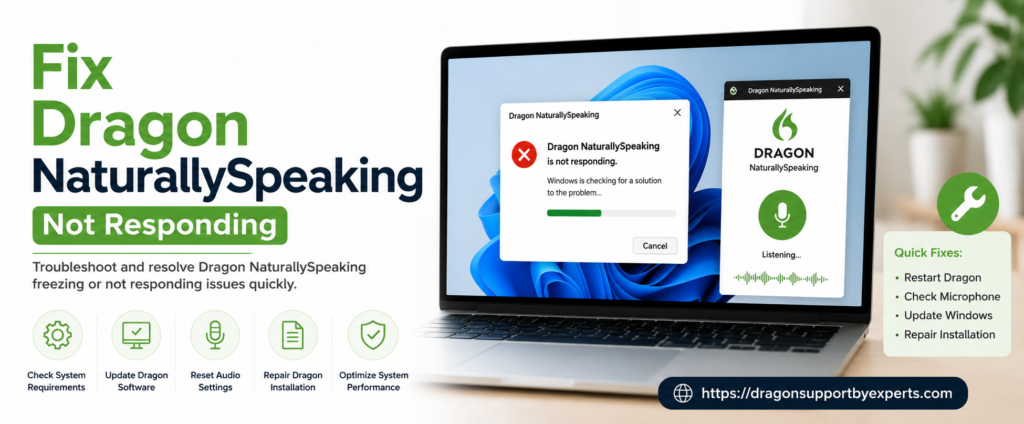
Dragon also known as Dragon NaturallySpeaking or Dragon Professional is a voice-to-text software that enables users to control computers with voice commands. This helps convert audio to written text in real time, with proper customization, dictation and transcription, easy voice commands, and more. This software tool has somehow become the right hand for users. While in use, it sometimes causes unexpected issues, including freezing, sudden shutdowns, system failures, and more, which directly affect productivity. Let’s discuss how to fix Dragon NaturallySpeaking Not Responding or crashing Windows 10/11 in detail, with a thorough coverage of common causes, required changes, proper fixes, and prevention tips. Stay tuned to know further.
Common Causes of Fix Dragon NaturallySpeaking Not Responding
If the dragon has suddenly stopped and affected your productivity on a large scale, it’s high time to fix Dragon NaturallySpeaking crashing Windows 10/11. The following causes may be responsible.
- Compatibility issues with Windows 11 updates and the Dragon versions 15.6 and 16, leading to proper freezing or failure.
- Usage of older versions of Dragon Naturally Speaking on Windows 11
- Using corrupt profiles can cause Dragon to unexpectedly shut down.
- If the clipboard is already in use or data is being modified, Dragon may cause conflicts.
- The use of third-party software or the involvement of antivirus software can affect its performance.
- Audio and hardware may be prone to errors.
System Requirements Check
When the discussion focuses solely on how to fix Dragon NaturallySpeaking Not Responding or crashing on Windows 10/11, some major requirements become important, as they directly affect Dragon’s performance.
- Proper operating system, including Windows 11 (64-bit) or Windows 10 (32-bit and 64-bit)
- RAM (minimum 4 GB for all the operating systems)
- A standard processor (2.2 GHz Intel dual-core or equivalent AMD processor.
- Hard disk space is a must with at least 12 GB (with proper availability of installation files)
- A browser with an updated version of Chrome/Firefox.
- A proper audio /software (this includes a sound card supporting 16-bit recording, Microsoft .NET Framework 4.8, and a Nuance-approved microphone.
Update Dragon Software & Windows
Whether you want to update Dragon software or Windows, we have provided the procedure for both.
To update the window
- First, open the settings.
- Now navigate to updates and security.
- Now check for the available updates.
- Click on install and restart.
- To update Dragon software (by using the check for updates).
- First, close all the programs.
- Now open the Dragon software.
- Now look for the updates.
- Click on the install update.
- Now follow the prompts given on the screen.
Fix Microphone & Audio Settings
Here are some tips to resolve microphone and audio issues.
- At first, check whether the dragon’s microphone is on or not.
- In case you are using an external microphone, make sure it is properly plugged into the computer. If you are using the laptop with a docking system, connect it to a microphone instead of the docking system. If the USB microphone is in use, connect it to the computer’s USB port, not a USB extension or hub.
- Now navigate through the sound system check and say “check audio”. If the audio signal is low, more memory will be required to recognize your speech, and Dragon will run slowly.
- Now, make sure the window you are working in is quite active.
While doing so, the microphone must be turned on. - Use updated audio drivers for your device. Do check the device’s manufacturer’s website for the latest updates.
Repair Installation (Step-by-Step)
Here are some of the steps that can be used to repair
Advanced Troubleshooting Methods(A right action plan)
- Shut down the applications (Dragon and other running applications)
- Make sure you are using the right window account.
- Keep your original installation DVD or downloaded setup file.
How to Repair (A Guiding Method)
- Open the control panel
- Select programs and features
- Now, locate the Dragon application
- Select the application name, click uninstall, and change(repair if available)
- Now run the setup or repair wizard
- Click install and look for the files
- Now restart the computer
Conclusion!
We have reached the end of the discussion on how to fix Dragon Naturally Speaking not responding or crashing on Windows 10/11. From common causes and required troubleshooting to the method of fixing, we have covered it all at one point. If you are dealing with the same issues, this guide can be your helping hand. Don’t get stuck in a loop; fix it and make the task effortless to maintain productivity and save time.
FAQs
Q1. What are the common causes of dragon crashing?
A. Some of the most common causes of Dragon crashing are using an older version of Dragon on Windows 11, audio and hardware errors, relying on corrupt profiles, and more.
Q2. Should I use a compatibility mode for older Dragon versions?
A. Yes, if you are using an older version, just right-click the dragon, select properties, and set it to Windows 7 or 8, whichever is in use.
Q3. How to keep the dragon protected from freezing/lagging?
A. To keep your dragon away from freezing, don’t exceed your pc limit upto 80% CPU/RAM. Don’t keep the unnecessary background applications open. Do use the Clean Boot in Windows to identify conflicts within the system.
Q4. If the dragon is not working in Microsoft Word/Outlook, what do you do to resolve it?
A. To do so, first open the files, then click on options and add-ins. Make sure the add-ins are not disabled. Now close both the Word and Dragon, right-click the Dragon icon, and select “Run as administrator.