
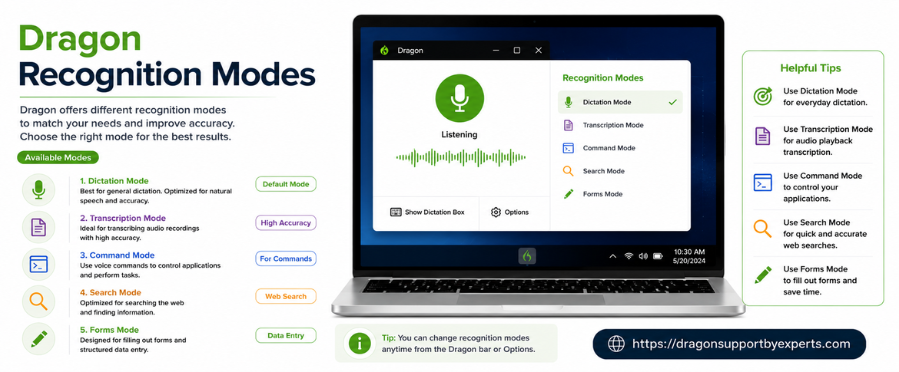
If you use Dragon speech recognition software, understanding its recognition modes can significantly improve your productivity. These modes help Dragon decide what kind of input you’re giving—whether it’s dictation, commands, spelling, or numbers.
By using the right Dragon recognition modes, you can get more accurate results and work faster without interruptions.
How to Switch Between Dragon Recognition Modes
Switching between different Dragon recognition modes is simple and can be done in multiple ways:
- Use voice commands like “Switch to Dictation mode”, “Switch to Command mode”, “Switch to Spelling mode”, or “Switch to Numbers mode”
- Click the recognition mode icon in the Status Window and choose your preferred mode
- Use the keyboard shortcut (default is ⌘F10) to cycle through modes
Choosing the correct mode ensures that Dragon understands exactly what you want to do.
1. Dictation Mode in Dragon
What is Dragon Dictation Mode?
Dragon Dictation mode is the most commonly used mode. It allows you to speak naturally and convert your speech into text.
What You Can Do in Dictation Mode
- Dictate text, including punctuation and numbers
- Use voice commands while dictating
- Create emails, documents, or reports quickly
Using Dragon dictation mode properly helps you write faster with minimal effort.
2. Command Mode in Dragon
What is Dragon Command Mode?
Dragon Command mode is designed specifically for executing voice commands instead of dictating text.
What You Can Do in Command Mode
- Open applications
- Navigate through menus
- Perform system actions using voice commands
If Dragon cannot recognize your speech as a command, it will not perform any action. This makes Dragon command mode highly precise for task execution.
3. Spelling Mode in Dragon
What is Dragon Spelling Mode?
Dragon Spelling mode is useful when you need to enter exact letters, numbers, or special characters.
What You Can Do in Spelling Mode
- Spell out words letter by letter
- Enter numbers and punctuation manually
- Use commands alongside spelling
Note that Dragon spelling mode does not apply automatic spacing or capitalization, giving you full control over the text.
4. Numbers Mode in Dragon
What is Dragon Numbers Mode?
Dragon Numbers mode is specifically designed for entering numbers quickly and accurately.
What You Can Do in Numbers Mode
- Dictate numbers as numerals
- Enter mathematical symbols
- Use commands along with numeric input
This mode is perfect for financial data, calculations, or reports that require frequent number entry.
Using Commands in Dragon Dictation Mode
Dragon dictation mode allows both speech-to-text and commands, but it uses pauses to understand your intent.
How It Works
- If you speak continuously, Dragon treats your speech as text
- If you pause before and after a phrase, Dragon may interpret it as a command
Example 1 (Continuous Speech)
Say: Select date and time
Result: Dragon types the sentence as text
Example 2 (With Pause)
Say: What is today’s date [pause] Select date
Result: First part is typed, and the second part is executed as a command
To get the best results with Dragon voice commands, speak clearly and use pauses wisely.
Conclusion
Understanding and using Dragon recognition modes correctly can greatly enhance your workflow. Whether you’re dictating text, issuing commands, spelling words, or entering numbers, each mode serves a specific purpose.
By mastering Dragon dictation mode, Dragon command mode, Dragon spelling mode, and Dragon numbers mode, you can boost efficiency and get more accurate results from your voice recognition software.