
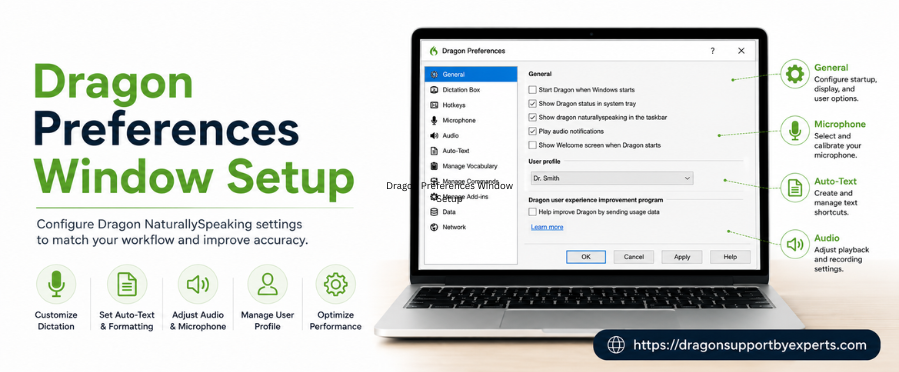
The Dragon Preferences Window is a powerful control panel that allows you to customize how Dragon works according to your needs. Whether you want to adjust startup behavior, manage dictation settings, or configure advanced options, this guide covers everything in detail.
In this article, you’ll learn how to access and use the Preferences window efficiently to improve your productivity and speech recognition experience.
What is the Dragon Preferences Window?
The Preferences Window in Dragon lets users control various settings such as:
- General preferences
- Profiles and dictation sources
- Dragon Anywhere accounts
- Keyboard shortcuts
- Updates and upgrades
- Advanced settings
- License keys and account management
This feature is essential for optimizing performance and tailoring Dragon to your workflow.
How to Open the Dragon Preferences Window?
You can easily access the Preferences window using either voice commands or manual navigation.
Method 1: Using Voice Command
Simply say: “Access Dragon Preferences window”
Method 2: Using Menu Bar
- Click the Dragon menu icon in the menu bar
- Select Preferences…
Overview of Preferences Window Panes
The Preferences window is divided into multiple sections (panes), each designed to control specific features of Dragon:
- General
- Profiles and Dictation Sources
- Dragon Anywhere Accounts
- Keyboard Shortcuts
- Updates
- Advanced Preferences
Each pane allows you to fine-tune your experience for better accuracy and efficiency.
General Preferences in Dragon
The General Pane is one of the most important sections. It controls basic functionality, startup behavior, and command generation.
Startup Options
These settings define how Dragon behaves when it launches:
Microphone in Sleep Instead of Off at Startup
Enable this option to start Dragon with the microphone in sleep mode instead of being completely turned off.
Benefit: You can activate the microphone instantly by saying “Wake up” instead of manually turning it on.
Show Status Window at Startup
Enable this option to display the Status Window when Dragon starts.
Benefit: You can monitor microphone status and system activity right away without needing voice commands.
Launch Dragon at Startup
Turn on this option to automatically launch Dragon when your computer starts.
Benefit: Dragon is always ready to use without manual opening, saving time and improving workflow efficiency.
Command Generation Options
Dragon allows you to create automatic voice commands for faster navigation and task execution.
Generate Application Launch Commands
Enable this setting to allow Dragon to create global voice commands for opening applications.
Example: You can say commands like “Open Chrome” or “Launch Word”.
Generate Email Commands
This option allows Dragon to generate voice commands for email creation and addressing.
Benefit: You can dictate emails quickly by using voice commands linked to your contacts.
Why Customize Dragon Preferences?
Customizing the Dragon Preferences Window helps you:
- Improve speech recognition accuracy
- Save time with automation
- Enhance workflow efficiency
- Reduce manual effort
- Personalize your dictation experience
Pro Tips for Optimizing Dragon Settings
- Always enable Launch at Startup if you use Dragon daily
- Use Sleep mode microphone for faster activation
- Turn on command generation to automate repetitive tasks
- Regularly check for updates in the Preferences panel
- Adjust advanced settings only if you understand their impact
Conclusion
The Dragon Preferences Window is a crucial feature that allows you to fully control and optimize your Dragon software. By properly configuring general settings, startup options, and command generation features, you can significantly improve productivity and accuracy.
Take time to explore each pane and customize settings based on your workflow to get the best performance from Dragon.