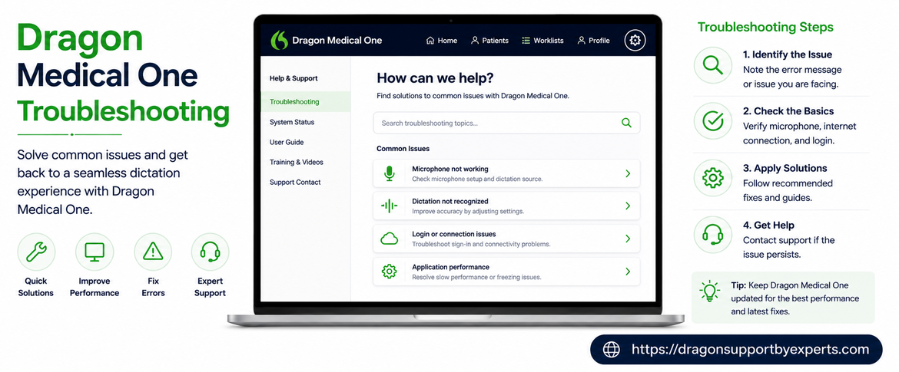
Dragon Medical One troubleshooting becomes much more convenient with the practical solutions provided in this guide. Whether you are using Windows 10 or Windows 11, you will find step-by-step instructions to resolve common issues, including microphone connectivity issues, application crashes, login errors, and more. Coupled with this, the guide covers best practices and ideal system requirements to improve application stability, enhance speech recognition accuracy, optimize overall performance, and reduce the likelihood of future issues.
Dragon Medical One Troubleshooting For Windows 10 and 11
Take help of these troubleshooting steps to fix the issues at the earliest.
| Issues | Solution |
| DMO Crashes Or Freezes |
|
| Power Mic Buttons Not Working |
|
| Powermic Not Responding |
|
| Missing First Word |
|
| Powerchart P438 error |
|
| Login Window Missing |
|
| Voice Commands Not Working |
|
Best Practices To Prevent Common Dragon Medical One Issues
Adhering to the below-given practices will help you improve speech recognition accuracy, application stability, and overall performance.
- Ensure your computer fulfills the recommended hardware and software requirements.
- Use a certified or supported microphone for optimal speech recognition accuracy.
- Verify the Windows, Dragon Medical One, and microphone drivers are running the most recent supported updates.
- Select the appropriate recording device before beginning your dictation session.
- Use a reliable network connection to maintain uninterrupted access to Dragon Medical One, especially in Citrix environments.
- Sign out of Dragon Medical One before leaving your workstation or accessing the application from another system.
- Don’t create any interruptions while it is launching or reconnecting.
- Monitor the microphone functionality on a regular basis and replace all faulty hardware if necessary.
- Keep your workstation well maintained to support optimal Dragon Medical One performance.
- Consult your IT department before making any configuration changes or performing advanced troubleshooting.
System Requirements
Ensure your workstation meets the recommended hardware, software, and network requirements listed below.
| Operating system | Windows 11 and windows 10 (64-bit) with the latest updates. |
| Processor | Multi color processor running at 2.8 GHz or higher.
memory RAM – 2GB or more. |
| .NET framework | Microsoft .NET framework 4.8 or later. |
| Microphone | Supported microphone capable of 16kHz, 16-bit mono audio. |
| Internet connection | Reliable broadband internet connection. |
| Network access | HTTPS (Port 443) must be available for dragon medical one services. |
| Browser support | Microsoft Edge (WebView2), Google chrome, or apple safari for supported web components. |
| Virtual environment | Supported citrix, microsoft remote desktop services (RDS) ,VMware horizon or Omnissa environments.
network latency (virtual environments) 50 ms or less for optimal speech recognition performance. |
Conclusion!
Dragon Medical One troubleshooting becomes quite simple once you follow the recommended solutions and best practices mentioned in this guide. By doing the essentials, including using supported hardware, updating workstations, and more, you will eventually improve application stability, minimize future issues, and more. If the issue still remains the same, contact your organization’s IT support team for further assistance.
Need Help With Dragon Medical One?
If you are still experiencing issues with Dragon Medical One after following the troubleshooting steps above, our experienced technical support team is here to help. We provide independent third-party support for Dragon Medical One and can assist with installation issues, login errors, microphone configuration, application crashes, speech recognition problems, and other technical concerns. Our experts work with you step by step to identify the issue and help you restore your software as quickly as possible.
📞 Call Us: +1-888-256-6612
💬 Live Chat with our Experts
Disclaimer: We are an independent third-party technical support provider and are not affiliated with, endorsed by, or sponsored by Nuance Communications, Microsoft, or any other product manufacturer.
FAQS!
A. Wait for the recording indicator to turn green before speaking. Pausing briefly after pressing the record button ensures your dictation is captured right from the beginning.
A. Ensure PowerMic II is selected as the input device and sign back into Dragon Medical One.
A. To improve the performance, keep your software updated, use a supported microphone, and maintain a stable network connection.
A. If the issue persists after completing the recommended troubleshooting, then contact IT.