
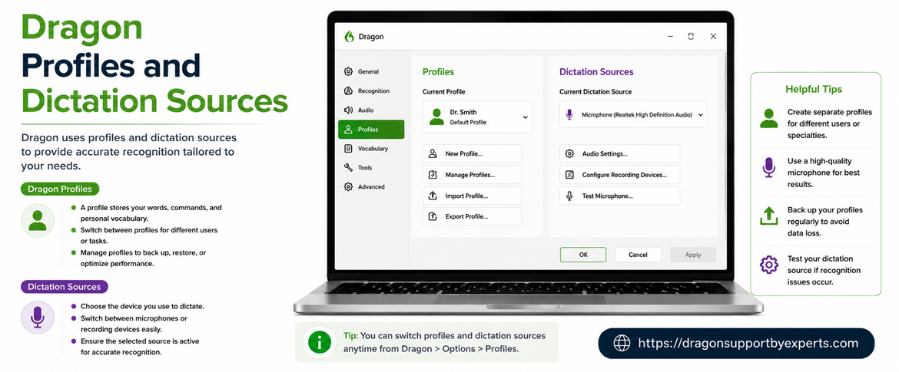
If you’re using Dragon NaturallySpeaking, understanding how to manage Dragon profiles and dictation sources is essential for accurate voice recognition. Proper setup ensures smooth performance and better speech-to-text results.
In this guide, you’ll learn how to create, switch, and manage profiles, as well as configure microphones (dictation sources) effectively.
What Are Dragon Profiles and Dictation Sources?
Understanding Profiles
A profile in Dragon is a personalized speech data set that stores how you speak. Each user must create their own unique profile so the software can adapt to their voice, accent, and speaking style.
What Is a Dictation Source?
A dictation source refers to the microphone you use with Dragon. This could include:
- Built-in system microphone
- USB headset
- Bluetooth microphone
To use Dragon efficiently, you need at least one profile and one dictation source configured.
How to Switch Between Profiles and Microphones
When you launch Dragon, it automatically loads the most recently used profile.
Switch Profiles
- Click the Dragon menu icon
- Choose a profile from the “Recent Profiles” list
Change Dictation Source
If multiple microphones are configured:
- Select your preferred microphone from the submenu
If your profile is not visible:
- Open Manage Profiles
- Select your profile
- Click Load
Fix Missing Dictation Source Issues
Sometimes your selected microphone may not be detected (for example, if it’s unplugged). In such cases, you can:
- Reconnect the microphone
- Choose a different available device
- Set up a new dictation source
Without a working microphone, Dragon cannot process speech input.
How to Create a New Profile
Follow these steps to add a new user profile:
- Open the Profiles section from settings
- Click Add Profile
- Enter a unique profile name
- Select your microphone from the list
- Choose your region and accent
- Complete the setup process
After saving, you must complete the Dragon microphone setup to ensure accurate voice recognition.
How to Add a New Dictation Source
To add a new microphone to an existing profile:
- Open the Profiles panel
- Click Add Dictation Source
- Select your microphone
- Optionally, give it a custom name
- Complete the microphone setup
This allows you to use multiple devices with the same profile.
Change Default Dictation Source
If you use multiple microphones, you can set one as default:
- Go to Dictation Sources settings
- Select your preferred microphone from the dropdown
This ensures Dragon always uses your preferred device when loading the profile.
Adjust Auto Formatting Settings
Dragon also allows you to customize formatting preferences:
- Open Auto Formatting settings
- Modify options as needed
- Save changes
This helps improve how your dictated text appears.
Delete Profiles or Dictation Sources
To remove profiles or microphones:
- Select the profile or dictation source
- Click Delete
Note:
- You cannot delete a profile or microphone currently in use
- At least one profile and one dictation source must always remain
Conclusion
Managing Dragon profiles and dictation sources is key to achieving accurate and efficient speech recognition. By properly setting up your profile and microphone, you can significantly improve performance and reduce errors.
Whether you’re switching devices, adding new microphones, or creating multiple profiles, these steps ensure you get the best experience from Dragon.